How to Setup IPTV on Amazon Firestick (Step-by-Step Guide)
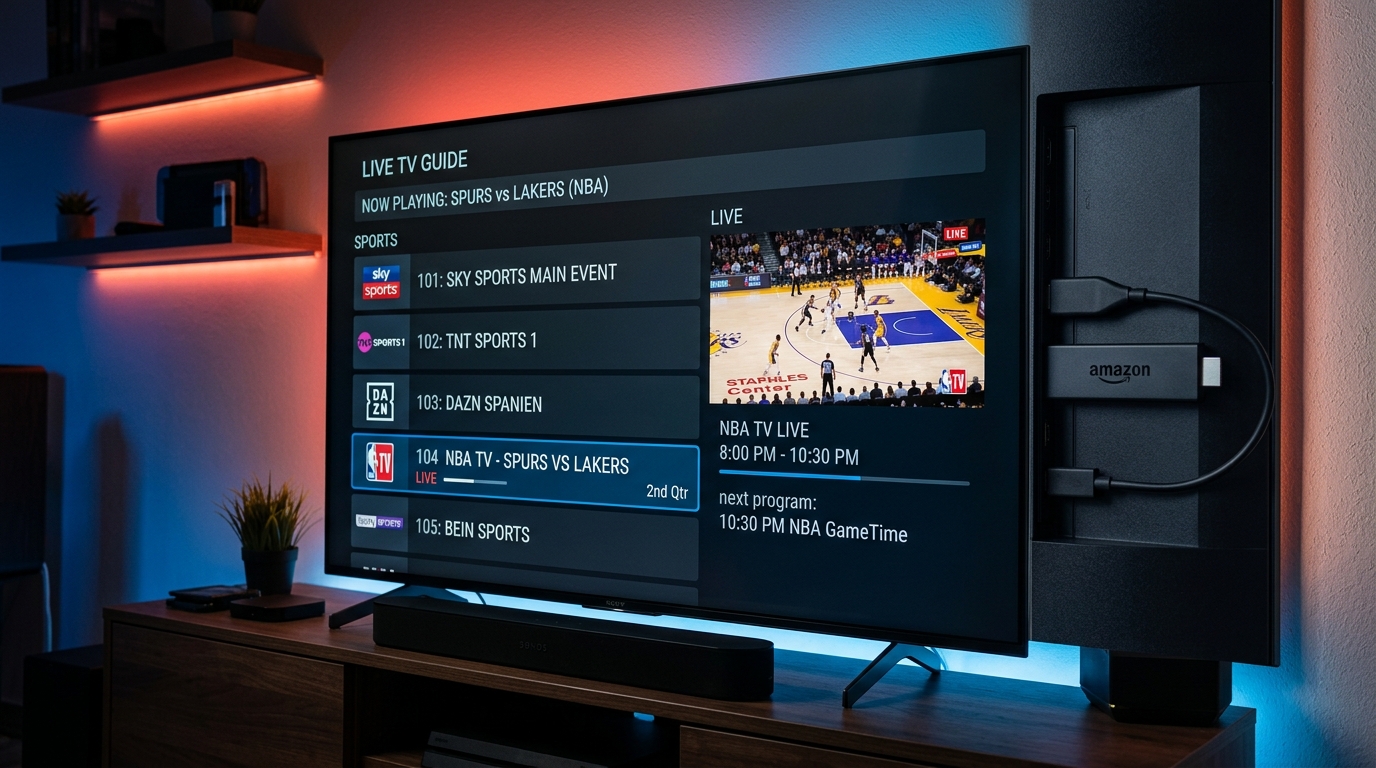
To setup IPTV on an Amazon Firestick: 1. Enable Developer Options ('Install Unknown Apps') in Fire TV Settings, 2. Install the free 'Downloader' app from the Amazon Appstore, 3. Enter the shortcode to install TiviMate or IPTV Smarters Pro, and 4. Log in using your British IPTV Xtream Codes credentials.
Table of Contents
- → Why Amazon Firestick is the #1 Streaming Device
- → Step 1: Enable Developer Options on Fire TV
- → Step 2: Install Downloader Application
- → Step 3: Download & Install TiviMate or IPTV Smarters
- → Step 4: Connect Your British IPTV Subscription
- → Pro Settings: Optimize TiviMate for Buffer-Free 4K
- → Frequently Asked Questions
Quick Summary (Position 0 Snippet):
Setting up IPTV on an Amazon Fire TV Stick takes under 2 minutes:
- Install Downloader from the Amazon Appstore.
- Enable Install Unknown Apps in Settings > My Fire TV > Developer Options.
- Open Downloader, install TiviMate or IPTV Smarters Pro.
- Choose Xtream Codes API, enter your British IPTV login credentials, and enjoy instant 4K Ultra HD streaming.
The Amazon Firestick is by far the most popular streaming device in the UK. Combining affordability with powerful hardware decoders, it can stream raw 4K UHD 60FPS video seamlessly.
Follow this verified step-by-step tutorial to configure your Firestick in less than 2 minutes without voiding any warranties or modifying system firmware.
Why Amazon Firestick is the #1 Streaming Device {#why-firestick}
- Dedicated Remote Control: Effortless channel zapping and EPG navigation.
- Hardware AV1 / HEVC Decoding: Hardware-level decompression reduces CPU load and prevents thermal throttling.
- Wi-Fi 6 / 6E Compatibility: Guarantees strong local wireless throughput for heavy 4K bitrates.
Step 1: Enable Developer Options on Fire TV {#step-1-developer-options}
By default, Amazon hides Developer Options on newer Fire OS updates. Here is how to unlock it in 15 seconds:
- Navigate to Settings (gear icon on the right side of the home screen).
- Click My Fire TV → About.
- Highlight your device name (e.g. Fire TV Stick 4K) and click the center remote button 7 times quickly.
- A notification will appear at the bottom: “No need, you are already a developer.”
- Press Back. You will now see Developer Options listed under My Fire TV.
- Click Developer Options → Install Unknown Apps and turn it ON for the Downloader app (in the next step).
Step 2: Install Downloader Application {#step-2-install-downloader}
- Go back to your Firestick Home screen and click Find → Search.
- Type Downloader using the on-screen keyboard.
- Select the orange Downloader icon by AFTVnews and click Download / Get.
- Once downloaded, open Downloader and allow storage permissions when prompted.
Step 3: Download & Install TiviMate or IPTV Smarters {#step-3-install-player}
In the Downloader address bar, you can install the leading IPTV players:
Option A: TiviMate IPTV Player (Recommended for Smart TVs & Remotes)
TiviMate offers the cleanest, fastest TV guide experience in the industry:
- Type Downloader Shortcode:
272483(or enterhttps://tivimate.com). - Click Go, wait for the APK to download, and click Install.
Option B: IPTV Smarters Pro
- Type Downloader Shortcode:
78522(or enterhttps://firesticktricks.com/smarter). - Click Go, download the package, and select Install.
Step 4: Connect Your British IPTV Subscription {#step-4-connect-credentials}
- Launch your installed player (TiviMate or Smarters).
- When prompted for playlist type, select Xtream Codes API (this is much faster and more reliable than M3U).
- Fill in the three parameters received on your WhatsApp activation message:
- Server URL / Portal:
http://line.britishiptv.pro:80(or your custom secure server port) - Username:
your_username - Password:
your_password
- Server URL / Portal:
- Click Next / Add Playlist.
- Your Firestick will automatically download the complete channel index, EPG schedule, and on-demand titles in under 10 seconds.
Pro Settings: Optimize TiviMate for Buffer-Free 4K {#optimize-settings}
To guarantee 100% buffer-free playback during peak Saturday 3PM fixtures, apply these fine-tuned settings in TiviMate:
| Setting Category | Recommended Value | Why This Matters |
|---|---|---|
| Buffer Size | Large (or Very Large) | Gives a 5-second cushion to absorb minor Wi-Fi dips |
| Auto Frame Rate (AFR) | ON | Automatically syncs TV refresh rate to match 50/60FPS sports |
| Video Decoder | Hardware | Uses Firestick dedicated GPU chip instead of CPU |
| Audio Passthrough | Enabled | Sends raw Dolby Audio directly to your soundbar |
| EPG Update Frequency | Every 12 Hours | Keeps electronic TV schedules perfectly synchronized |
Troubleshooting Common Firestick Issues
- Black Screen on Channel Change: Go to Settings > Playback > Tuner and toggle between Software and Hardware decoder.
- Buffering at 3 PM: Your UK ISP (BT/Virgin) might be throttling traffic. Enable your VPN or contact British IPTV support on WhatsApp for a port re-route.
- Storage Low Warning: In Fire TV Settings > Applications > Manage Installed Applications, clear cache on background apps.
Ready to Stream in 4K?
Get your credentials in under 90 seconds and start enjoying buffer-free entertainment.
Get Your 12-Month Firestick Pass for £47 →
Ask Our Technicians on WhatsApp for 1-on-1 Remote Help →
Tired of Buffering and Complicated Configurations?
Switch to British IPTV today. 99.9% uptime, true 4K Ultra HD at 60fps, and instant setup on WhatsApp for just £47/year.
Subscribed to 12-Month 4K UHD Plan